
Before You Put a VPN on Your Router, Decide Which Devices Should Use It
You may have bought a smart TV or a game console and discovered it lacks a usable VPN app. A common suggestion is to configure the VPN on your router so every device on the Wi‑Fi uses it. That can be a practical solution when individual devices cannot run their own client, but it is not automatically the right choice for every household.
Routing all traffic through a single VPN can solve compatibility problems for streaming boxes and consoles, but it also changes how devices reach the internet and can affect performance, notifications, or access to workplace resources. Treat a router VPN as a routing decision: decide which devices should use the tunnel and which should keep the direct ISP connection.
A Router VPN Helps When a Device Cannot Run Its Own App
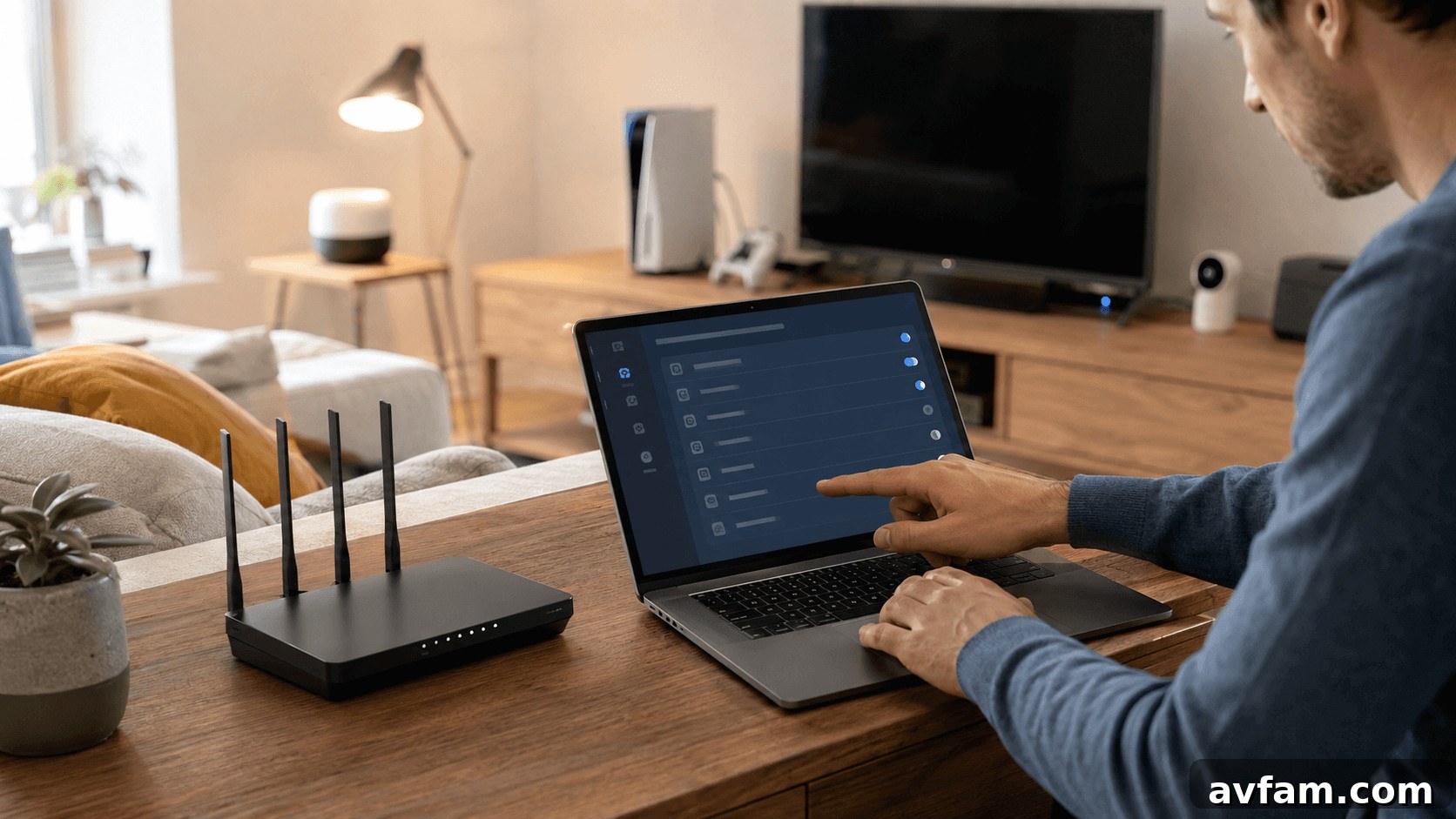
Phones and laptops typically use a VPN app: install, sign in, pick a server, and connect. Many smart TVs, streaming sticks, set‑top boxes, and gaming consoles offer no such option. Configuring the VPN on the router pushes the encrypted connection to the network edge. Devices send traffic to the router and do not need to know the tunnel exists.
Some contemporary consumer routers offer device-level control, letting you route selected devices through a VPN profile while leaving others on the regular internet connection. That kind of flexibility is valuable when a household includes mixed device types with different needs.
A Router VPN Changes the Internet Route, Not Local Network Layout
Putting a device on a VPN changes how its traffic exits to the wider internet: traffic between the router and the VPN server is encrypted and external services see the VPN server’s public IP. It usually does not change how devices communicate inside your home network.
Local interactions—camera streams to a phone on the same LAN, printing from a laptop, or casting to a TV—are governed by guest networks, client isolation, and firewall rules, not by the VPN. If you want to separate low‑trust devices from computers and phones, use network segmentation in addition to any VPN routing.

Group Devices by What They Need to Keep Working
Before changing router settings, make a list of devices and consider what each gains from a VPN and what might stop working if you route it through the tunnel. Focus on practical tests rather than assumptions.
| Device | Possible reason to use the router VPN | What to test |
| Smart TV or streaming stick | Cannot install a VPN app | Playback, sign-in, and location-sensitive services |
| Security camera or doorbell | Changes outbound route and public IP | Live view, alerts, cloud uploads, and remote access |
| Game console | Cannot run a standard VPN client | Latency, NAT behavior, and account sign-in |
| Printer or casting device | May be affected by whole-home rules | Local discovery, printing, and casting |
| Work laptop | May already use a corporate VPN | Company VPN compatibility, video calls, internal access |
| Smart light or basic sensor | Sends limited traffic to a cloud service | App control, automations, and updates |
The exercise usually shows that not every device benefits equally. A smart TV is a low‑risk place to begin because it is easy to test and often lacks a VPN app. Cameras and work devices deserve more careful checks because interruptions can affect security alerts or access to company systems.
Confirm That Your Router Can Act as a VPN Client
Some routers include only a VPN server feature to allow remote access back to your home, which is different from acting as a client for an external VPN service. Verify your exact router model, firmware version, and supported protocols before attempting configuration.
Check whether the router can:
- Send every connected device through a single VPN tunnel
- Route only selected devices through the VPN
- Support multiple profiles for different groups of devices
- Offer or lack device-level control once a tunnel is active
Device assignment is offered by some router lines but is not universal. If your home mixes cameras, TVs, printers, and corporate equipment, device-level routing can be more useful than a long list of supported VPN protocols. Back up the current router configuration and note how to disable or roll back changes before you start.
Test Daily Services Before Moving the Whole House
Do not switch every device at once. Start with one or two low‑impact devices so you can detect problems without disrupting critical services. On a smart TV, record the initial public IP, DNS behavior, and basic speed, then repeat after enabling the VPN. Use the TV as you normally would: sign in to apps, stream for a while, and watch for buffering or login trouble.
For cameras and doorbells, check live view, motion alerts, cloud recordings, and remote access from outside your home network. For printers and casting devices, verify local discovery and printing from another device on the LAN. Try different VPN server locations if available—behavior can vary by server.
Also test how the router behaves when the VPN drops: does it cut devices off, or does it revert them to the ISP? Neither is inherently better; the right behavior depends on the device and your needs. Use safe test activities and avoid entering sensitive credentials when you are diagnosing routing.
A Router VPN Does Not Replace Basic Home-Network Security
A VPN on the router complements but does not replace good network hygiene. Keep router firmware updated, use WPA2 or WPA3 encryption, set a unique administrator password, and enable the firewall. Disable unnecessary remote management features. Segment guest and IoT devices when isolation is required—VPN routing does not fix vulnerable firmware or unwanted lateral access on the LAN.
Keep Whole-Home Routing Only If It Solves a Real Problem
Whole‑home VPN routing makes sense when a single exit point is required and all essential services work correctly after careful testing. More commonly, selective routing is the better approach: route smart TVs and consoles through the tunnel while leaving printers, thermostats, and work laptops on the regular connection.
Device‑level apps remain the simplest option for phones and computers because they let you control connection status and server choice without changing the home network. The best configuration is the smallest one that reliably solves the problem you have. Start with one device, test thoroughly, and expand only if each step passes practical checks and meets your needs.